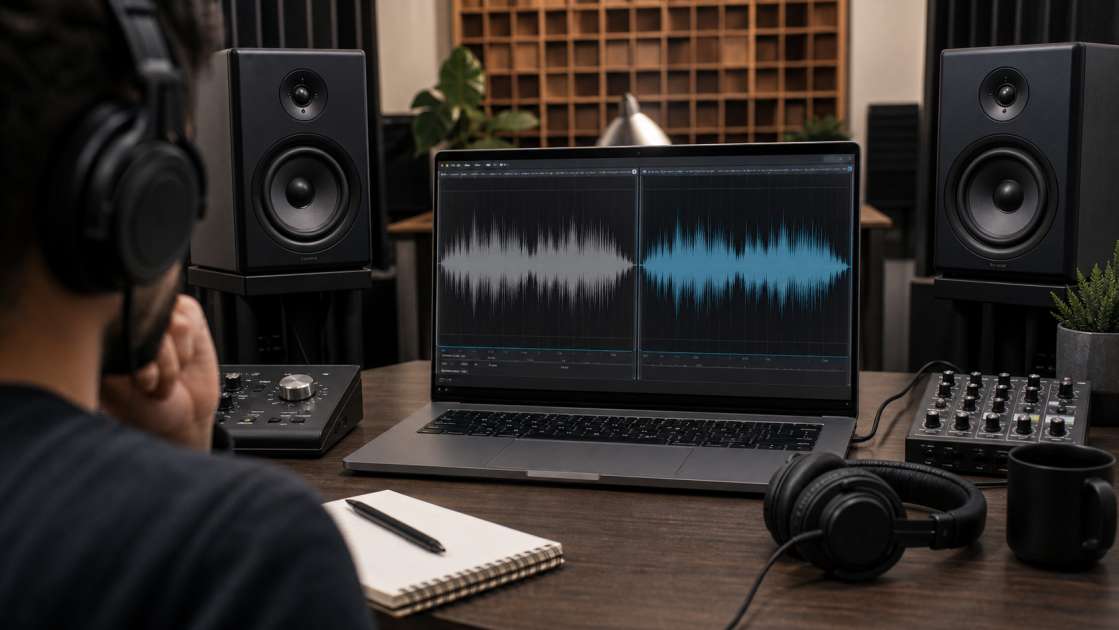
You've spent an hour tweaking prompts in Suno, finally nailed the melody and the vibe, hit generate, and... the track sounds like it was mixed inside a tin can filled with bees. The vocals are buried somewhere under a blanket of mush, the cymbals are slicing through your eardrums, and the whole thing has this weird metallic shimmer that screams "I was made by an algorithm." I've been there. That moment when you realize your brilliant musical idea is trapped inside a fundamentally broken audio file is genuinely depressing.
In a nutshell: Suno's raw output often sounds muddy or harsh because of frequency imbalances—cut 200-500 Hz to fix muddiness, export stems as WAV files (not MP3), use free tools like Audacity or BandLab for basic EQ and compression, and always A/B test against a professional reference track in your genre. Budget: $0 if using free software, or $20-50 monthly for a pro DAW subscription. What to bring: A decent pair of headphones or monitors—your laptop speakers will lie to you about everything. Main tip: Always export and work with Suno's individual stems, not the full mixed track, so you can surgically fix problem elements without ruining the entire song.
The reality is that AI-generated music has a dirty little secret: the algorithms are getting brilliant at composition and arrangement, but the actual audio engineering is still stuck somewhere in 2019. Suno spits out ideas faster than your brain can process them, but the mixes are consistently... let's say "unfinished." The good news? Every single one of these problems is fixable with about thirty minutes of post-production work. You don't need a degree in audio engineering. You don't even need expensive software. What you need is to understand exactly what's wrong with your track, and which specific knobs to turn to fix it.
Why Your Suno Mix Sounds Bad: Identifying the Common Problems
Before you start randomly twisting EQ knobs and making things worse, you need to diagnose the actual problem. I've listened to hundreds of Suno tracks at this point, and the issues fall into about five predictable categories. The most common complaint I hear is that the track sounds muddy—like someone draped a wet towel over the speakers. Everything blends together into this low-mid frequency soup where you can't distinguish the bass from the rhythm guitar from the lower vocal harmonies. Technically, this happens because there's way too much energy sitting in the 200-500 Hz range. Your brain interprets this as "muffled" or "boxy," and it's exhausting to listen to for more than thirty seconds.
Then there's the opposite problem: tracks that sound harsh or brittle, where the vocals and hi-hats feel like they're stabbing you directly in the frontal lobe. This is an excess of upper-mid frequencies, usually around 2-4 kHz. Suno seems to have a weird bias toward boosting this range on certain vocal styles, especially anything that involves belting or aggressive delivery. The result is fatiguing and amateurish—it's the audio equivalent of someone shouting directly into your ear canal.
The third category is the unbalanced mix, where individual elements are just... wrong. The kick drum is a faint rumor beneath an ocean of synth pads. The lead vocal is completely buried under the guitars. Or—and this one drives me insane—the bass is so overpowering that it turns the entire track into a subwoofer stress test. Suno's automated mixing algorithm tries to balance everything, but it clearly has no concept of genre conventions or what humans actually want to hear prominently.
I've also noticed some more esoteric problems that seem to be artifacts of the generation process itself. There's a robotic vocal tone that creeps into certain tracks, where the singer sounds less like a human and more like a text-to-speech engine that learned to carry a tune. There's a metallic sheen or shimmer that sits on top of the entire mix like someone sprinkled aluminum foil across the frequency spectrum. There's clipping and distortion where the algorithm clearly pushed the levels too hot during generation. And there's often a sub-bass rumble below 30 Hz that's completely inaudible but still eating up headroom and muddying the low end.
The Pro Method: Using a Digital Audio Workstation (DAW)
If you want full control—and I mean the ability to surgically fix every single problem in your Suno track—you need a DAW. A Digital Audio Workstation is just software that lets you edit, mix, and master audio with precision. The professionals use things like FL Studio or Adobe Audition, which cost money but give you every tool imaginable. I've been using FL Studio for years, and while the learning curve is steeper than I'd like to admit, the control you get is worth it. For people who don't want to spend a dime, Audacity is shockingly capable for free software—it looks like it was designed in 1997, but it has all the essential tools you need. BandLab is another excellent free option that runs in your browser, and GarageBand comes free on every Mac and is honestly better than it has any right to be.
The critical first step is exporting stems from Suno, and I cannot stress this enough: if you skip this step, you're working with one hand tied behind your back. A stem is just an individual audio file for each element of the track—vocals, drums, bass, and other instruments isolated into separate files. To get them, click the three dots next to your track, select "Get Stems," and download the files. This is where most people screw up: make absolutely certain you're downloading in WAV format, not MP3. MP3 is a compressed format that throws away audio information to save file size, and you cannot get that information back. WAV is lossless. You need every scrap of audio quality you can preserve, especially when you're about to start cutting and boosting frequencies.
Once you have your stems loaded into your DAW, you can finally do what Suno's algorithm couldn't: fix the vocal track without touching the drums, boost the bass without making the guitars louder, cut harsh frequencies from the hi-hats without dulling the entire mix. It's the difference between trying to adjust a photograph by holding colored cellophane up to your monitor versus actually opening it in Photoshop. One tiny practical tip for FL Studio users that's saved me hours: throw a multi-band compressor on the master channel with a gentle preset. It acts like a safety net that catches the most egregious frequency imbalances automatically while you work on the individual stems.
Step-by-Step EQ Guide to Clean Up Your Mix
EQ—equalization—is your primary surgical tool for fixing frequency problems, and the good news is that you only need to understand about five moves to fix 90% of Suno's issues. The first and most important move is fixing that muddy, muffled sound that plagues almost every Suno export. Load up your EQ plugin, find the frequency range between 200 and 500 Hz, and make a cut. I usually start with a 3-4 dB reduction centered around 400 Hz and adjust from there. You'll hear the track immediately open up—it's like pulling a wool blanket off the speakers. The instruments separate, the vocals become intelligible, and suddenly your mix sounds like it's worth listening to.
If your bass feels weak or thin—and Suno's bass is often anemic—you want to add some body by gently boosting the 80-120 Hz range. I emphasize "gently" because it's incredibly easy to overdo this and turn your track into a boomy mess that sounds great on your headphones and terrible on every other playback system. A 2-3 dB boost is usually plenty. You're not trying to rattle windows; you're trying to give the bass enough presence that it feels solid and anchored instead of like a distant suggestion.
For tracks that sound harsh or brittle—vocals that make you wince, cymbals that feel like ice picks—you want to make small cuts in the 2-4 kHz range. This is where our ears are most sensitive, which is why even a small excess here is so fatiguing. I'll often make a 2 dB cut around 3 kHz on the vocal stem and immediately the singer sounds less like they're screaming and more like they're, you know, singing. Be subtle here. Cut too much and your track will sound dull and lifeless, like you're listening through a wall.
To add clarity and air to a mix—that sense of openness and sparkle that professional tracks have—you can gently boost the 8-12 kHz range. This is the frequency range where consonants live, where cymbals shimmer, where the sense of "space" in a recording comes from. A 2 dB boost around 10 kHz can make a track sound noticeably more expensive and polished. But here's the trap: if your Suno track already has that metallic sheen artifact I mentioned earlier, boosting this range will make it worse. You'll amplify the hiss, the digital noise, all the stuff you're trying to hide. So use your ears, not just your eyes watching the EQ curve.
Finally, every single Suno track I've ever worked with benefits from a High-Pass Filter set to cut everything below 20-30 Hz. This range is below human hearing anyway—you can't actually perceive these frequencies as sound, only as vibration—but they're eating up headroom and adding a muddy rumble that makes your mix feel unclear. Cutting them out is free clarity. It tightens the low end, makes the bass punchier, and generally cleans up the bottom of your frequency spectrum without any perceptible loss of content.
Mastering Your Suno Track for a Professional Sound
Mastering is the final polish—the process of making your track loud enough, balanced enough, and cohesive enough to sit next to professional releases on Spotify or YouTube without sounding like a rough demo. The first tool you need to understand is normalization, which is just a fancy way of saying "make this track as loud as it can be without distorting." Suno exports are often too quiet, and normalization brings the overall level up to a competitive standard. In Audacity, this is under "Effect > Normalize." In most DAWs, it's a standard plugin. You want to normalize to somewhere around -1 dB to leave a tiny bit of headroom as insurance against clipping.
Next is compression, which is the most misunderstood tool in audio production. Compression reduces the dynamic range—the difference between the loudest and quietest parts of your track—and when used lightly, it makes everything feel more cohesive and punchy. The kick drum and the vocal sit better together. The quiet parts don't disappear, and the loud parts don't blow out your speakers. The key word is "lightly." Aggressive compression is what makes modern pop music sound like a wall of noise with no breathing room. For Suno tracks, I usually apply a gentle compressor with a ratio around 3:1, a medium attack, and a fast release. You should barely be able to tell it's there, but the mix will feel tighter and more controlled.
If you want your track to sound wider and more immersive, you can experiment with stereo widening. Most DAWs have a plugin for this—in Adobe Audition it's literally called "Stereo Expander." It takes the stereo information in your track and exaggerates it, making things feel like they're happening in a bigger space. This can sound incredible on headphones, but be careful: too much widening will make your track sound weird and phasey, and it can cause parts of your mix to disappear when played in mono (which is how a lot of Bluetooth speakers and phone speakers work).
The single most valuable technique in mastering is using a reference track. Find a professionally released song in the same genre as your Suno track—something that sounds the way you want your track to sound—and import it into your DAW. Then A/B test: play a section of your track, immediately switch to the reference, then back to yours. You'll instantly hear the differences. Maybe the reference has more bass presence. Maybe the vocals sit higher in the mix. Maybe the whole thing just sounds brighter and more open. Now you have a target to aim for, and you can adjust your EQ and levels until your track gets closer to that professional sound. I do this obsessively, and it's the fastest way to train your ears.
Quick Fixes & Automated Tools for Beginners
For people who find DAWs intimidating, or who just want decent results in five minutes instead of spending an afternoon tweaking EQ curves, automated tools are a legitimate option. The one I hear recommended most often is Automix, which is essentially AI-powered mixing. The workflow is dead simple: export your Suno stems as WAV files, upload them to the Automix service, and let it automatically balance levels, apply EQ, set panning, and handle compression. I tested it with a particularly nasty Suno track that sounded like it was recorded underwater, and the results were... honestly pretty good? Not perfect, not what I'd achieve with an hour of manual tweaking, but vastly better than the raw Suno export and done in about three minutes. For casual users, that's a reasonable trade-off.
There are also specialized tools designed specifically to fix Suno's most common artifacts. I've seen references to a Suno Vocal Fix plugin that targets that robotic tone and metallic sheen before you even start mixing. The idea is to run your vocal stem through it first, let it strip out the AI-generated weirdness, and then proceed with normal EQ and compression. I haven't tested this personally, but the concept makes sense—if you can remove the artifacts at the source, you're working with cleaner material from the start.
Another interesting automated technique is Match EQ, which exists in various forms across different DAWs and audio tools. The concept is that you feed it a reference track—say, a professionally mixed pop song—and it analyzes the frequency balance of that track and applies a similar EQ curve to your Suno export. In theory, this should make your track sound warmer, wider, or punchier depending on what reference you choose. In practice, the results are hit-or-miss. Sometimes it works beautifully and instantly makes your track sound more professional. Sometimes it applies a bizarre EQ curve that makes everything worse. But it's fast, it's reversible, and for beginners it's worth experimenting with.
I've also heard about a preset called UnSuno for Adobe Audition, specifically designed to remove the background noise and weird ambient artifacts that Suno bakes into tracks. I haven't used it myself—I'm not an Audition user—but the idea is clever. Suno's generation process leaves a distinct sonic fingerprint, a kind of digital atmosphere that doesn't exist in real recordings. If someone's built a preset that targets and removes that specific signature, it could be a massive time-saver for people processing a lot of Suno tracks.
Advanced Technique: Checking and Fixing Phase Issues
Phase issues are one of those problems that most people have never heard of but can completely ruin a mix. In simple terms, phase cancellation happens when two stereo channels are slightly out of sync in a way that causes certain frequencies to cancel each other out when the track is played in mono. This mostly affects the low end—bass and kick drums—and the result is that these elements either disappear entirely or sound weirdly thin when played through certain speaker systems. Suno's stereo generation algorithm occasionally creates phase problems, and you won't notice them at all if you only listen in stereo on headphones. Then you play the track through a Bluetooth speaker or a club PA system, and suddenly your bass has vanished.
The diagnostic test is embarrassingly simple: switch your track to mono and listen carefully. Most DAWs have a mono button on the master output. Many audio players do too. Play the track in mono and pay attention to the low end. Does the kick drum suddenly sound weaker? Does the bass get quieter or, weirdly, louder? If there's a noticeable change, you've got phase issues. Some elements are partially canceling each other out in the stereo field, and when you collapse everything to mono, that cancellation becomes audible.
Fixing phase issues properly requires specialized tools and a decent amount of technical knowledge—phase alignment plugins, polarity switches, sometimes even re-generating parts of the track. But honestly, for most Suno users, the important thing is just being aware that the problem exists. If you check your track in mono and it sounds fine, you're good to go. If the bass disappears, you at least know what the problem is, and you can start Googling "how to fix phase cancellation" or consider re-generating that particular Suno track with different settings. Awareness alone gets you 80% of the way there.
The Ultimate Suno to Pro-Sound Workflow: A Checklist
Here's the entire process distilled into a step-by-step workflow that you can follow every single time you export a track from Suno. Step one: Export individual stems from Suno in WAV format, not MP3. Click the three dots, select "Get Stems," choose WAV. This is non-negotiable. You need the full audio quality to work with. Step two: Before you even open your DAW, run any problematic stems—usually vocals—through a noise reduction or specialized vocal fix tool if you have one. This strips out the robotic tone and metallic artifacts at the source, giving you cleaner material to mix.
Step three: Load all the stems into your DAW and apply corrective EQ. Cut 200-400 Hz to remove muddiness. Consider boosting 80-120 Hz to add bass body. Make small cuts around 2-4 kHz if things sound harsh. Gently boost 8-12 kHz to add air and clarity. Apply a high-pass filter below 20-30 Hz to clean up sub-bass rumble. These five moves will fix the vast majority of frequency problems. Step four: Balance the levels between stems so that vocals sit where you want them, drums punch through, and bass is present but not overwhelming. Apply light compression to the master channel—ratio around 3:1—to glue everything together. Then normalize the final mix to bring it up to a competitive volume, usually around -1 dB.
Step five: Import a professional reference track in the same genre and A/B test obsessively. Play a section of your track, switch to the reference, switch back. Listen for differences in bass presence, vocal level, brightness, stereo width. Make tiny adjustments to your EQ and levels to close the gap. This is where your track goes from "pretty good" to "sounds like it belongs on a playlist." Step six: Export your final, improved track as a high-quality WAV or FLAC file. Do not export as MP3 unless you're specifically preparing a file for streaming or sharing—and even then, convert from your WAV master, don't export from the DAW as MP3 directly. Preserve quality at every stage. Follow these six steps, and your Suno tracks will sound cleaner, louder, and infinitely more professional than the raw exports.