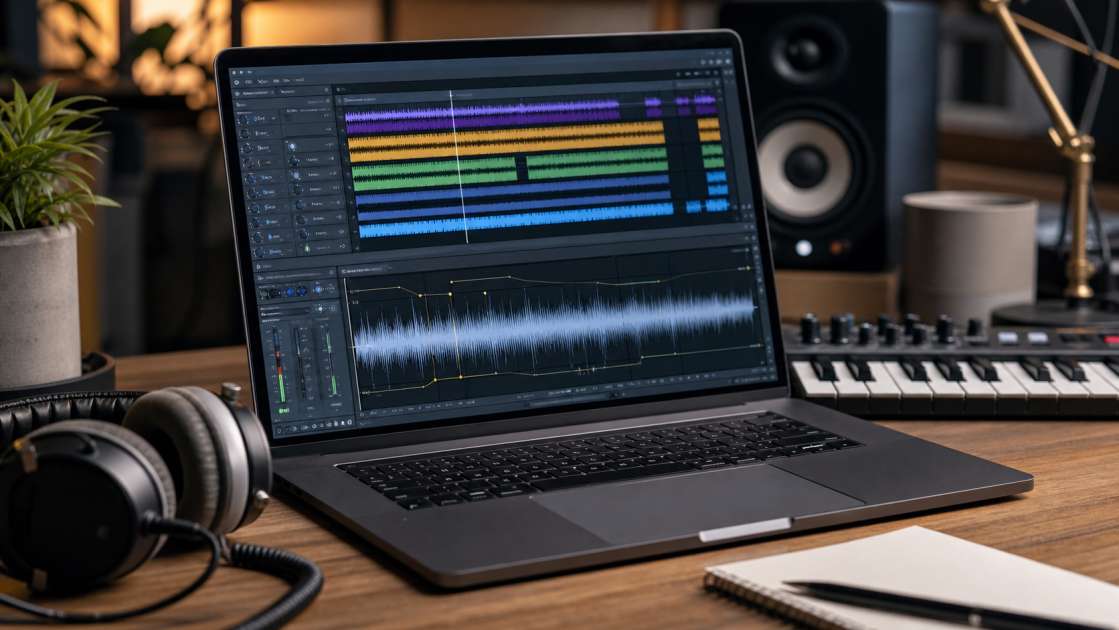
I spent three hours last night listening to the same 30-second loop of a vocal line, trying to figure out if that repeating metallic pop was part of the artistic vision or just the AI having a stroke. It wasn't artistic. It was that thing — the shimmer, the warble, the robotic hiccup that Suno leaves behind like digital breadcrumbs. You know the sound. It starts around the second chorus, this subtle but unmistakable popping noise that makes your track sound like it was rendered on a microwave. I've created what I thought were incredible tracks, only to have them sound like they're wrapped in cellophane when I hit play on decent headphones. The problem isn't the composition. The problem is the artifacts.
Вкратце: The best weapon is stem separation — get all detected stems from your Suno library, then use surgical tools like narrow-band EQ cuts and spectral repair in a DAW to remove specific artifacts without touching the rest of the track. Bring studio-quality headphones. Budget around $0-50 depending on whether you use free DAWs or invest in plugins like iZotope RX. Main tip: Work on individual stems, not the full mix, and always A/B test your changes — if the track loses energy or sounds flat, you've gone too far.
What Are Suno Artifacts and Why Do They Happen?
Artifacts are the unintended sounds that the AI model leaves behind when it tries to translate your prompt into audio. They're not intentional. They're the result of the model struggling with cadence, pronunciation, or harmonic complexity and essentially guessing wrong. The most common type is what the community calls digital warble — an unstable pitch that makes vocals sound drunk. Then there's the metallic edge, that harsh, tinny quality that makes guitars sound like they're being played through a tin can. Cymbals often get a swishy, phasey quality that's grating. Notes sometimes have fluttering tails, like the sound is vibrating as it decays. And the worst offender: robotic shimmer. That repetitive popping or shimmering noise, especially in vocals, that sounds like the singer is being Auto-Tuned by a broken calculator.
Why does this happen? The AI is pattern-matching based on its training data. When your prompt pushes it into territory it hasn't seen much of — unusual cadences, complex vocal runs, genre-bending instrumentation — it starts interpolating. Sometimes it interpolates poorly. The result is these spectral anomalies: unnatural frequency spikes, mathematically perfect timing that no human drummer would ever produce, pitch uniformity that strips away organic drift. It's the AI's fingerprint, and it's detectable. DistroKid and TuneCore scan for these patterns. I've had tracks rejected not because they were bad, but because the metadata and spectral signature screamed "generated by machine." That's the practical problem. You can have a banger, but if it's got the shimmer, it's not getting through the gate.
Step 1: Get Your Stems – The Foundation of Clean Audio
Stems are individual audio files for each component of your song. Think vocals isolated from drums isolated from bass isolated from synths. Working with stems means you can fix the shimmer on the vocal track without accidentally killing the punch in your kick drum. Suno generates music as a stereo mix by default, but buried in the interface is the option to break that mix apart.
Here's how I do it. I open my Suno library, find the track that's giving me grief, and click the three dots next to it. There's an option that says Get stems. I click that. A menu pops up asking how many stems I want. I always choose All detected stems. This can give you up to 12 separate tracks — lead vocal, backing vocal, kick, snare, hi-hat, bass, guitar, synth, pad, FX, and sometimes more depending on the complexity. Each one is a clean audio file. Now I can load them into Suno's Studio mode, or better yet, export them and bring them into a proper DAW where I have real control.
Why is this step non-negotiable? Because if you try to fix artifacts on a full stereo mix, every tool you use affects everything. You try to remove a vocal shimmer with a high-frequency cut, and suddenly your hi-hats sound like they're underwater. You apply a denoise plugin, and the whole track goes flat. Stems let you be surgical. The vocal has shimmer? Fix the vocal. Leave the drums alone.
Step 2: Listen Like a Pro – How to Identify Problem Areas
I load the stems into Suno's Studio mode — or into Ableton if I'm feeling serious — and I start soloing. Solo means muting everything except one track. I'll solo the lead vocal and listen for 30 seconds. Is there a repetitive pop? A metallic edge on certain consonants? A shimmer that kicks in during sustained notes? I mark the timestamp. Then I solo the drums. Are the cymbals swishy? Does the snare have a weird digital ring? I mark it. Bass: is there a flutter on the low notes, or an inconsistent rumble that sounds like the AI couldn't decide what sub-bass frequency to use? Synths and pads are sneaky — they often hide low-level noise that you don't notice until you solo them, but once you hear it, you can't unhear it.
The key is active listening. I'm not passively enjoying the music. I'm hunting. I wear my good headphones for this, the kind that cost more than I'd like to admit. Laptop speakers are useless here. They compress the frequency range and hide the exact problems I'm trying to find. On vocals, I'm listening for unnatural breath sounds — those robotic inhales that sound less like a person and more like a synthesizer imitating a person. On drums, I'm listening for cymbals that sound more like white noise bursts than metal being struck. On bass, I'm checking if the low end has weight or if it's just digital mush. This process is tedious. It's also the difference between a track that sounds AI-generated and one that sounds produced.
Step 3: Advanced Cleanup Using a DAW and External Plugins
Once I know where the problems are, I open a DAW. A Digital Audio Workstation — software for editing and mixing audio. Could be Ableton Live, Logic Pro, FL Studio. If you're broke, Cakewalk is free and surprisingly capable. I import the stems and I go to work with four main techniques.
First: Spectral Repair. This is the scalpel. I use iZotope RX, which has a tool called Spectral Repair that lets me see the audio as a visual spectrogram. Problem frequencies show up as bright splotches or lines. I can literally select a shimmer with my mouse — it looks like a repetitive pattern of vertical lines — and hit "repair." The software interpolates what the sound should be based on the surrounding audio and fills in the gap. It's like Photoshop's healing brush, but for sound. A click disappears. A pop vanishes. The rest of the vocal remains untouched. This is the tool I reach for when the artifact is localized and obvious.
Second: Parametric EQ with a narrow band. I load an EQ plugin and create a very narrow boost — high Q value, maybe 10 or 15. Then I sweep it across the frequency spectrum while the track plays. When I hear the artifact get louder, I've found its home frequency. Let's say it's at 3.7 kHz — that metallic ring on the snare. I flip the boost to a cut, keep the Q narrow, and reduce the gain by 3-6 dB. The ring disappears. The snare still sounds like a snare. This is the opposite of what most people do wrong: they apply a broad cut across the highs, which kills the clarity of the entire mix. I'm targeting one specific problem frequency and leaving everything else alone.
Third: Denoise plugin. This works on background artifacts — the low-level hiss or digital noise that sits under pads or ambient tracks. I add a Denoise plugin, play a section of the track where the artifact is audible, and adjust the Threshold slider. Too low, and it does nothing. Too high, and the track sounds muffled, like I'm listening through a blanket. The sweet spot is where the noise disappears but the instrument still has air and detail. I'm constantly toggling the plugin on and off to make sure I'm improving the sound, not just changing it.
Fourth: Volume automation. For very short glitches — a single click, a momentary pop — this is the fastest fix. I zoom way in on the waveform in my DAW until I can see the exact moment of the glitch. It usually looks like a sharp spike. I draw a volume automation curve that dips down to silence for just that fraction of a second, then comes back up. The glitch is inaudible. The rest of the audio is unaffected. This takes 15 seconds and works perfectly for isolated problems.
Step 4: Instrument-Specific Strategies for a Natural Sound
Each type of stem has its own personality and its own typical problems. I've learned to approach them differently.
Vocals are where the shimmer loves to live. My goal is to remove that robotic popping while keeping the natural breath and detail that makes a vocal sound human. I use a very light de-esser if there's a swishy quality on "s" and "t" sounds. I apply a narrow EQ cut if there's a specific shimmer frequency — often somewhere between 3-5 kHz. If the shimmer is really bad, I'll use spectral repair on individual notes. The key is restraint. Over-processing vocals makes them sound flat and lifeless. I'd rather leave a hint of shimmer than turn the vocal into a monotone robot.
Drums usually suffer from harsh cymbals or metallic hi-hats. I'll use a gentle high-frequency cut, starting around 8-10 kHz, or a multiband compressor to tame just the top end. I never touch the kick or snare unless they have a specific problem, because those are the elements that give the track its punch and groove. Flatten the drums, and the whole song loses energy.
Basslines sometimes have a digital flutter — the note wavers instead of sitting solid. A light compressor can even this out. If there's a low-frequency hum or rumble that sounds unnatural, I use a high-pass filter to cut everything below 30-40 Hz. That's below the fundamental frequency of most bass notes anyway; it's just mud.
Pads and ambient tracks hide noise. They're often the culprit behind a mix that sounds "dirty" even when the main instruments are clean. A gentle denoise pass on these stems can make the whole track feel clearer and more professional.
Bonus: How to Prevent Artifacts During Generation
The best artifact is the one that never gets generated in the first place. I've started experimenting with techniques to influence Suno during the creation process, based on community findings I've seen on Patreon and Reddit threads. They're weird, but they work.
Metatags in lyrics. I'll add descriptive tags directly into my lyric sheet at the points where shimmer tends to appear. Something like [soft vocal] or [whisper] or even random things like an emoji (🎤). The AI interprets these as cadence and pronunciation cues, and it changes how the model generates that section. I've had shimmer disappear entirely just by adding a metatag before a chorus. The trick is not to repeat the same tag over and over — that seems to make things worse. I vary them.
Adjusting lyric spacing. The structure of the text matters. If I'm getting shimmer on a particular verse, I'll try adding a blank line between stanzas. Or removing a blank line. It sounds superstitious, but it works. The spacing alters the cadence, which acts as a new seed for the AI generation. Sometimes that's enough to steer it away from the artifact-prone output.
Cover oscillation. This is an advanced move. I generate a track, and it has shimmer. I use the "Continue from this song" feature with a slightly altered prompt — maybe I change one word in the style description. I generate again. The shimmer shifts or reduces. I keep iterating, oscillating between two prompts, steering the AI towards a cleaner version each time. If I hit a plateau where the shimmer stops improving, I know those two prompts don't work well together, and I try a different pair. It's labor-intensive, but I've salvaged tracks this way that I thought were unsalvageable.
Step 5: The Final Check – Did You Preserve the Soul?
I've cleaned up the stems. I've removed the shimmer. Now comes the most important step: making sure I didn't ruin the track in the process. I do an A/B test. I toggle every plugin and edit on and off. Does the vocal sound clearer with the EQ cut? Yes. Does it also sound thinner, less present? If yes, I ease back on the cut until I find the balance. I listen to the full mix, not just the soloed stems. Does the bass sit well with the kick now, or does it sound disconnected? Does the drum groove still hit, or have I flattened it into a metronomic thud?
I check my headroom. I keep the master fader so the track peaks at around -3 dB to -6 dB. This leaves room for mastering and prevents digital clipping. If the waveform is slamming into 0 dB, I've probably over-compressed something, and the track is going to sound distorted on most playback systems.
Then I do the ultimate test: I compare my final, cleaned-up mix with the original Suno generation. I play them back to back. If the original — shimmer and all — had more vibe, more emotion, more life, then I've gone too far. I've prioritized technical cleanliness over musicality. I undo some changes. I bring back a little bit of the imperfection. Because a track that's technically perfect but emotionally flat is worse than a track with a little shimmer that makes you feel something.
FAQ: Your Questions About Suno Artifacts Answered
Why was my Suno track rejected by DistroKid or TuneCore? Their systems detected AI signatures. Could be spectral anomalies — unnatural frequency patterns. Could be timing regularity — beats that land on mathematically perfect grid positions. Could be metadata fingerprints embedded in the file. This guide addresses the audio side. You still need to handle metadata separately, but removing artifacts is half the battle.
Can I remove artifacts without expensive plugins like iZotope RX? Yes. The parametric EQ and volume automation techniques I described work in any DAW, including free ones like Cakewalk or Audacity. You won't have the visual spectrogram of RX, but you can still hunt down problem frequencies by ear and cut them with precision. It takes more time, but it's absolutely possible.
What is flattening a song and why is it bad? Flattening means crushing the dynamic range — the difference between the quiet parts and the loud parts — until everything is the same volume. It happens when you over-compress or over-filter. The music loses its groove, its punch, its ability to breathe. It sounds lifeless and amateur. Loud doesn't mean good. Dynamic contrast is what makes music interesting.
Does cleaning artifacts affect the audio quality? Only if you do it wrong. If you're surgical — narrow EQ cuts, light denoise settings, targeted spectral repair — you're removing distracting noise without touching the underlying music. The perceived quality goes up because the listener isn't being pulled out of the experience by a robotic shimmer. But if you apply heavy, broad filters, then yes, you'll degrade the quality. The difference is in the approach.