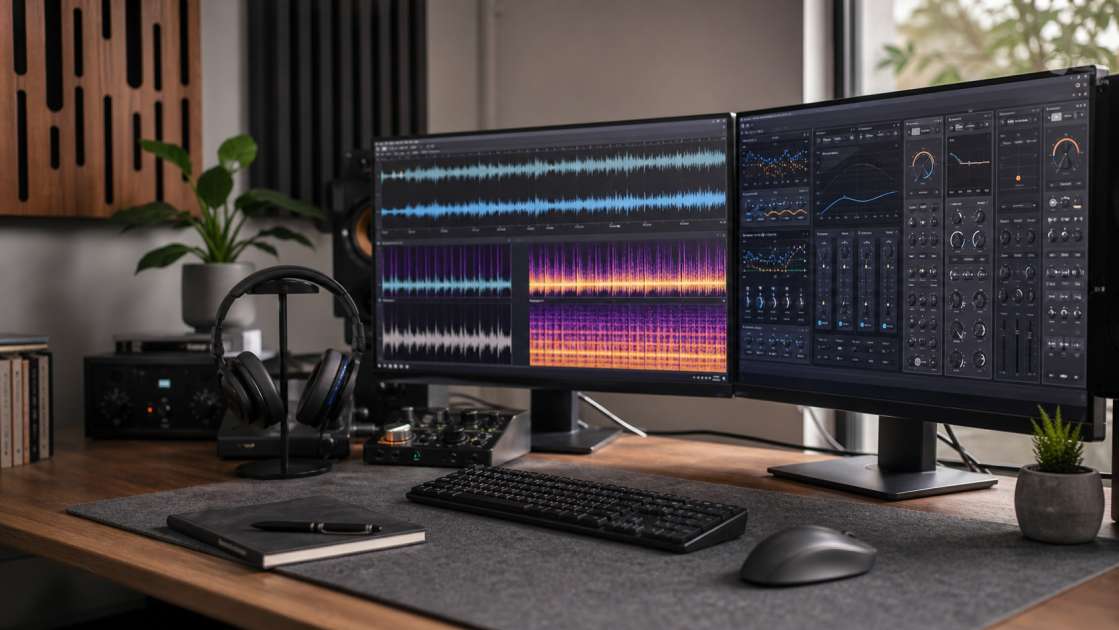
Two months ago, I finally generated a melody that didn't sound like a committee of robots wrote it. The chord progression was mine, the lyrics were mine, and for about forty-five seconds I felt like an actual musician. Then I played the track through my studio monitors — decent ones, not the laptop speakers I usually suffer through — and there it was: that metallic warble in the vocals, like someone had Auto-Tuned a malfunctioning toaster. The promise of Suno AI is seductive: anyone can create music now, no theory degree required, no expensive gear cluttering your apartment. But that promise collapses the moment you hear that digital hiss creeping through the chorus, or when DistroKid sends you a polite rejection email because their algorithm sniffed out your AI-generated track in three seconds flat. The revolution is here, but it sounds like a broken cassette tape, and if you want to upload anything to Spotify without getting flagged, you need to fix it.
Вкратце: the most effective solution is isolating your vocal stem with Adobe Podcast or Demucs, then running it through iZotope RX 11's Spectral De-noise and De-ess modules. If you want automation, Undetectr costs $39 lifetime and claims a 98% distribution pass rate. For free options, use Suno Studio's native 'Remove Effects' feature combined with a 16kHz hard cut in Audacity. Bring a decent pair of headphones to actually hear what you're fixing. Budget around $40 if you're serious about getting on streaming platforms. Main tip: never apply global filters to the whole track — separate that vocal stem first or you're wasting your time.
First, Identify the Problem: Common Suno AI Audio Artifacts
Before you start throwing plugins at the problem, you need to know what you're listening for. I didn't, which is why I spent an entire afternoon applying random EQ curves and making my track sound worse. The most obvious culprit is that robotic vocal quality — imagine a singer who swallowed a synthesizer and is now trying to communicate through layers of metallic shimmer. It chatters in the mid-range, warbles when the melody moves, and sounds like the vocalist is performing inside a tin can factory. That's artifact number one.
Then there's the hiss. Not the warm analog tape hiss that hipsters pay extra for — this is digital grit, a high-frequency static that sits on top of everything like someone left a radio tuned between stations. It's the sonic equivalent of visual noise in a badly compressed JPEG. You'll also notice what I call smeared reverb, where the vocals sound like they were recorded in a cathedral designed by someone who hates clarity. Every word blurs into the next, the echo doesn't decay naturally, it just sits there being muddy and annoying.
Harsh sibilance is another giveaway. The 'S' and 'Sh' sounds turn into ice picks aimed directly at your eardrums — overly sharp, piercing in a way that no human vocalist would produce unless they were being tortured. And if you listen closely during quiet sections or transitions, you'll catch little clicks and pops where Suno's algorithm stitched audio segments together. They're subtle, but once you hear them, they're everywhere, like noticing the typo in a sign you've walked past for months.
Why You Must Remove Artifacts: Quality, Distribution, and Professionalism
I uploaded my first Suno track to DistroKid thinking I was clever. Three hours later, I got an email explaining that my track had been rejected due to "characteristics consistent with AI-generated content." Turns out, music distributors aren't idiots. They run detection algorithms specifically designed to sniff out the spectral fingerprints that Suno and Udio embed in their outputs — not intentionally like watermarks, but as byproducts of their generation models. These platforms can see patterns in the frequency spectrum that your ears might miss but that scream "artificial" to trained detection software.
This matters because if you want your music on Spotify, Apple Music, TuneCore, or any legitimate streaming platform, those tracks need to pass the distributor's quality checks. DistroKid and CD Baby have explicitly updated their policies to flag obvious AI generation signatures. They're not banning AI music outright — they just don't want tracks that sound like they were assembled by a computer having a nervous breakdown. The business reason is simple: streaming platforms penalize distributors who upload low-quality content, so they protect themselves by rejecting anything that might drag down their catalog's average.
Beyond distribution, there's the issue of basic professionalism. I showed an early Suno track to a friend who's been producing for a decade, and he winced at the first chorus. Not because the composition was bad — he actually liked the melody — but because the artifacts made it sound amateurish. Listeners are merciless. They'll skip your track in the first fifteen seconds if something sounds off, even if they can't articulate why. That metallic warble and digital hiss are red flags that tell an audience this wasn't made with care, regardless of how much effort you actually put into the prompt engineering. Tools like Undetectr exist specifically because artists realized their otherwise solid tracks were being rejected or ignored purely due to detectable AI signatures.
The Pro Method: Stem Separation + DAW Plugins
If you want actual control and the best possible result — not just a one-click fix that may or may not work — you need to do what real audio engineers do: isolate the problem, then treat it surgically. This means separating your vocal stem from the instrumental, because trying to clean artifacts on a full mix is like trying to remove a stain from a shirt you're still wearing. It doesn't work.
The first step is stem separation using an AI tool. Adobe Podcast has a decent vocal isolation feature, though I've learned the hard way to set the 'Enhance' slider around 50% instead of maxing it out — full enhancement turns vocals into a weird, overprocessed mush. Alternatives like Demucs and Spleeter are open-source and surprisingly effective if you don't mind a slightly more technical setup. What you're after is two clean files: one with just the vocals, one with everything else. Once you have that isolated vocal track, the real work begins.
This is where a DAW — a Digital Audio Workstation, which is just software for editing audio — becomes necessary. Audacity is free and works, but if you're serious, you'll eventually end up with something like Logic Pro or Ableton. The plugin that keeps coming up in every professional discussion is iZotope RX 11. People call it the industry gold standard for audio repair, and after using it, I understand why. It's not cheap, but it's also not magic — it just gives you very precise tools to target specific problems.
The three modules I use most are Spectral De-noise, De-ess, and De-reverb. Spectral De-noise is for that digital hiss and grit — you teach it what the noise sounds like by selecting a quiet section, then let it strip that profile from the entire track. De-ess targets those harsh, piercing 'S' sounds that make you flinch. And De-reverb, set to Adaptive mode, cleans up that smeared, muddy reverb without making the vocal sound like it was recorded in a closet. There's a learning curve, but once you understand what each module does, you can fix artifacts that automated tools miss. Other plugins like Soothe2 or Smooth Operator are also worth mentioning — they're designed to tame metallic harshness and resonant frequencies that make AI vocals sound synthetic.
The Automated Method: Dedicated AI Artifact Removers
Not everyone wants to spend an afternoon tweaking spectral profiles in a DAW. I get that. Some people just want their track fixed so they can move on with their lives. That's where dedicated AI artifact removers come in — tools that claim to do in one click what would normally take a trained engineer thirty minutes. The emphasis is on "claim," because I've tried enough of these to know that results vary wildly depending on the severity of the artifacts and the specific track.
The tool getting the most attention right now is Undetectr. It's marketed specifically for making Suno, Udio, and ElevenLabs tracks distribution-ready, and the company claims a 98% pass rate for uploads to Spotify and similar platforms. It costs $39 for lifetime access, which is either a bargain or a waste of money depending on whether it actually works. From what I've seen, it does a decent job at removing the spectral fingerprints that distributors flag, though it's not going to fix severe vocal warble as effectively as manual DAW work. What it does offer is speed and convenience — upload your track, wait a couple of minutes, download a cleaned version.
If you don't want to spend money, ArtefactFX is a free alternative that includes both a checker and a remover. I haven't tested it extensively, but the reports I've seen suggest it handles lighter artifacts reasonably well. There's also AI Music Cleaner by Tembrica, which is specifically designed for Suno's spectral issues. The problem with all these automated tools is that they're black boxes — you upload a file, the algorithm does something mysterious, and you get a result. You have no control over what gets changed or how aggressively. For some tracks, that's fine. For others, you'll end up with vocals that sound weirdly processed in a different way.
The Budget Method: Using Suno's Built-in Tools & Free Software
Suno has clearly noticed that people are complaining about artifacts, because they've started adding native cleanup tools directly into Suno Studio. The most useful is the 'Remove Effects' feature, which attempts to strip away the built-in reverb and delay to give you a dry acapella. In theory, this lets you re-mix the vocal with your own processing. In practice, it works about 70% of the time — sometimes you get a clean vocal, other times it sounds like the algorithm removed half the vocal performance along with the reverb. But it's free and built-in, so it's worth trying before you reach for third-party tools.
Suno Studio also includes artifact reduction tools that specifically target clicks, warble, and hiss. The advice I've seen — and the advice I'd give — is to start conservatively. Apply the reduction at a low setting, preview the result, and only increase it if necessary. These tools are destructive, meaning once you export the track, the changes are permanent. I've ruined more than one vocal by being too aggressive with hiss reduction, turning the vocal into a muffled, lifeless mess.
If you're willing to get your hands dirty, Audacity is a free DAW that gives you surprising power for the price — which is zero. The single most effective trick I've learned for cleaning AI vocals in Audacity is applying a 16kHz hard cut using the equalizer. This removes the unnatural high-frequency "digital air" that makes AI audio sound fake. Human voices don't produce much usable content above 16kHz anyway, so cutting that range doesn't hurt the vocal quality — it just eliminates the synthetic shimmer that screams "AI-generated." Audacity also has a basic Noise Reduction effect, though I've found it degrades quality quickly if you push it too hard. Use it sparingly, or don't use it at all.
A Recommended Step-by-Step Workflow for Perfect Audio
After wasting more time than I'd like to admit on ineffective methods, I've settled on a workflow that actually produces usable results. This isn't the fastest approach, but it's the most reliable, and if you're planning to distribute the track, reliability matters more than speed.
First, separate your stems. Use Adobe Podcast, Demucs, or any other AI separation tool to isolate the vocal and instrumental tracks. This is the foundation — if you skip this step, everything else will be less effective. Once you have an isolated vocal stem, that's what you'll focus on for the next several steps.
Second, clean the vocal track. If you have iZotope RX 11, run the vocal through Spectral De-noise, De-ess, and De-reverb as needed. If you're using Undetectr or another automated tool, this is where you'd upload just the vocal stem, not the full mix. If you're going the free route, open the vocal in Audacity and proceed carefully with manual noise reduction.
Third, apply a high-frequency EQ cut. Regardless of which cleaning method you used in step two, open the cleaned vocal in your DAW or Audacity and use an equalizer to cut everything above 16kHz. This eliminates the artificial fizz that lingers even after artifact removal. It's a simple step, but the difference is immediately audible.
Fourth, re-balance the mix. Import both the cleaned vocal and the original instrumental track into your DAW. Listen to them together and adjust the volume levels. A common issue is that the cleaned vocal sounds quieter or more prominent than it did in the original mix. I usually end up lowering the instrumental by about 2dB to compensate, but this varies depending on the track. Trust your ears.
Fifth, normalize for streaming. This is the final polish. Streaming platforms like Spotify have loudness standards — specifically, they expect tracks to be around -14 LUFS with a true peak of -1.0 dB. If you don't know what LUFS means, it's a loudness measurement standard that accounts for how humans actually perceive volume. Most DAWs have a loudness meter and normalization tool built in. Use it. Tracks that are too quiet get ignored, and tracks that are too loud get algorithmically turned down anyway, so you might as well hit the target from the start.
What Actually Helps? (Which Tool is Right for You?)
I've spent enough time in audio forums to know that everyone wants a simple answer to the question "which tool should I use?" The truth is, it depends on how much control you want and how much time you're willing to invest. But here's the breakdown that actually matters.
For best-in-class results and maximum control: The combination of stem separation using Adobe Podcast or Demucs, followed by manual cleanup in iZotope RX 11, is unbeatable. This is the method professional audio engineers use, and it's the only approach that gives you precise control over every aspect of the cleanup. The downside is cost and learning curve — RX 11 isn't cheap, and you need to understand what each module does to avoid making things worse.
For speed and simplicity: Undetectr is the top choice if you just want your track cleaned and distribution-ready without learning a DAW. It's $39, it's automated, and it handles the spectral fingerprints that distributors flag. You won't get the surgical precision of manual editing, but for most Suno and Udio tracks, it does the job well enough to pass distribution checks.
For a completely free solution: Combine Suno's native 'Remove Effects' feature with manual EQ work in Audacity. Specifically, that 16kHz hard cut is surprisingly effective at eliminating the synthetic quality of AI vocals. It won't fix severe artifacts, but if your track only has mild issues, this free approach produces usable results without spending a cent.
The single most important insight, regardless of which tool you choose, is this: isolate the vocal stem and treat it separately. Global filters applied to the entire mix are far less effective and often introduce new problems while trying to fix old ones. Separate, clean, re-combine. That's the workflow that actually works. The rest is just a matter of choosing which tools fit your budget and patience level. I've watched too many people export mediocre AI tracks because they were too impatient to separate stems, and I've also watched people spend hours tweaking plugins when a $39 automated tool would have solved their problem in two minutes. Figure out which kind of person you are, then pick your method accordingly.