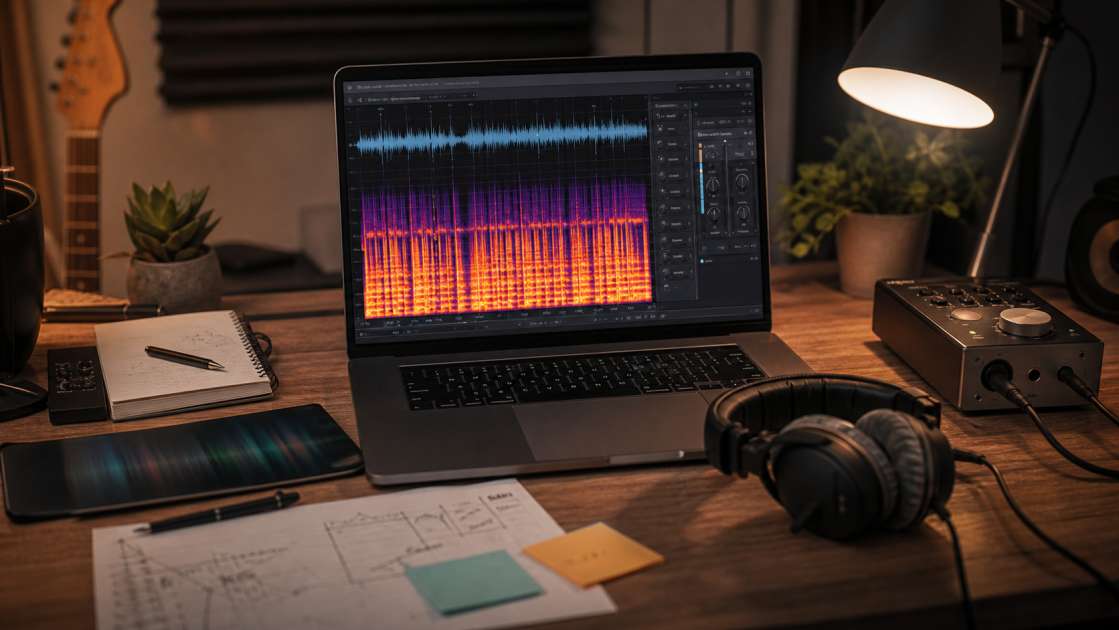
So you've just generated what could have been a decent track with Suno AI, and now you're sitting there, headphones on, wincing at that godawful metallic screech. It's like someone wrapped your music in aluminum foil and threw it into a microwave. That robotic reverb, those frequencies that feel like ice picks in your eardrums – yeah, I know exactly what you're dealing with. These are AI glitches, the dirty fingerprints that machine learning leaves all over your audio. They happen because the algorithm, for all its cleverness, still processes sound like a very sophisticated but ultimately tone-deaf calculator. It bakes in artifacts, harsh highs, and a digital watermark that screams "I WAS MADE BY A ROBOT" to anyone with functioning ears. Here's the thing though – you don't have to live with it. I've spent too many nights fixing this garbage, from the laughably simple one-click solution that Suno finally bothered to add, to the kind of post-production gymnastics that make you question your life choices. This isn't a quick-fix listicle. This is everything I've learned about dragging AI-generated music out of the uncanny valley and into something you might actually want to share.
Вкратце: The worst metallic harshness usually lives above 16kHz in the vocal track – cut those frequencies with an EQ and you'll fix 70% of the problem. Bring a decent pair of headphones to actually hear what you're fixing, not those $10 earbuds. Budget maybe an hour of your time if you're doing the full post-production workflow in Audacity. Main advice – always try Suno's built-in Remove FX tool first before you waste time with manual editing.
The Easiest Fix: Using Suno's Built-in 'Remove FX' Tool
Suno finally woke up and added a Remove FX feature in Studio version 1.2, which frankly should have existed from day one. This tool specifically targets that insufferable IT reverb – that's the particular flavor of robotic echo that makes every Suno track sound like it was recorded in a metal shipping container. What makes it marginally clever is that it doesn't just strip out reverb like a sledgehammer; it actually regenerates the instrumental parts to sound more organic. In theory, anyway.
Finding it is straightforward enough. Open your project in Suno Studio, and there's a Remove FX button sitting right there in the interface, usually near the track controls. Click it. Wait while it processes. The first time I used it, I was skeptical – I've been burned by too many "magic fix" buttons that do absolutely nothing. But I'll admit, it handled about 60% of the metallic garbage on a track I was working with. The vocal still had some harsh sibilance, and the high-end was still a bit brittle, but the worst of that underwater-robot effect just vanished.
This should always be your first move. Before you open Audacity, before you start Googling VST plugins, just hit this button. If it solves your problem, great – you've saved yourself three hours of tedious editing. If it doesn't, well, at least you tried the easy route before descending into the ninth circle of audio production hell.
Advanced Post-Production: The Professional Workflow
When Remove FX doesn't cut it – and trust me, it often doesn't – you're stuck with manual surgery. This is where you actually earn the right to call yourself someone who "produces music" instead of just "generates it." You'll need a Digital Audio Workstation. I use Audacity because it's free and I'm cheap, but if you've got Logic Pro or Ableton, the principles are the same. Just more expensive.
The workflow breaks down into four stages that I've repeated so many times I could do them in my sleep: stem separation, vocal processing, instrument treatment, and final normalization. Each stage peels back another layer of the AI's incompetence. This gives you granular control over every element – vocals, bass, drums, all isolated and ready for you to fix what the algorithm couldn't get right. It's time-consuming. It's occasionally infuriating. But it's the only way to transform a Suno output from "obviously AI" to something that might fool a casual listener.
Step 1: Break the Track Apart with Stem Separation
Stem separation is exactly what it sounds like – you take your single audio file and rip it apart into individual tracks. Vocals go in one corner, bass in another, drums over there, everything else in a pile labeled "other." The reason this matters is because it breaks the digital watermark, that baked-in processing signature that Suno stamps all over your audio like an obnoxious copyright notice. Once you've separated the stems, you can treat each element independently instead of trying to fix everything at once like some kind of audio archaeologist with a toothbrush.
I usually use Lalal.ai for this. Upload your file, wait a few minutes, download your separated stems. There are free options – Vocalremover.org works in a pinch, and Audacity has some built-in features if you dig around enough. The quality varies wildly depending on which tool you use and how complex your track is. A simple pop song with clear vocals? Easy. Some experimental track with overlapping synths and chopped vocals? Good luck. But even a mediocre separation gives you more control than working with the original mixed file.
Step 2: Clean and Polish the Vocal Track
Suno vocals are where most of the pain lives. Harsh highs that could shatter glass, metallic artifacts that sound like the singer gargled with razor blades, and sibilance so sharp you could cut yourself on the letter S. I've heard bedroom recordings made on a $50 USB microphone that sound warmer than what Suno spits out.
First problem: instrument bleed. Sometimes the vocal stem still has bits of melody or harmony bleeding through, like ghosts haunting your track. If you've got access to SpectraLayers or similar software, use the Unmix Song mode to surgically remove those phantom instruments from the vocal track. It's tedious pixel-hunting work, but it cleans things up.
Second problem: those S and Sh sounds that could pierce concrete. This is where a De-Esser comes in. It's a specialized tool that tames sibilance, and it's absolutely essential if your track is in a language with lots of hissing consonants. I once worked on a Suno track with Sanskrit lyrics – every other syllable was a sharp sibilant assault. Running it through a De-Esser made it tolerable instead of painful.
Third problem, and this is the big one: the robotic fizz that lives in the stratospheric frequencies. Open your vocal track in Audacity. Go to Effect, then Filter Curve EQ. Now here's the magic trick that fixes more problems than it has any right to: create a steep low-pass filter that cuts everything above 16,000 Hz. Just murder those frequencies. Make it a sharp drop, not a gentle slope. The first time I did this, I couldn't believe how much cleaner the vocal sounded. All that digital hiss, that robot-in-a-tin-can quality – gone. Humans can barely hear above 16kHz anyway, and the only thing living up there in a Suno track is artifacts and pain.
Step 3: Add Warmth and Balance to the Mix
After you've beaten the vocal into submission, the instrumental tracks need attention. They usually sound cold, sterile, like they were calculated rather than played. Audio saturation is your friend here – it adds subtle harmonic distortion that mimics the warmth of analog gear. I add a light saturation effect to each stem: bass, drums, whatever else you've got. It's like putting a thin layer of butter on toast. Too much and it's greasy; just enough and everything tastes better.
Then comes the mixing balance, which is where a lot of people screw up their otherwise decent edits. Your cleaned-up vocal needs to sit properly in the mix, not float on top of it like oil on water. I learned this the hard way after proudly sharing a track where the vocal was so loud it sounded like the singer was screaming over a backing track playing in another room. The rule I follow now: if the vocal sounds too prominent or aggressive after all that processing, reduce the volume of the combined instrumental tracks by 2dB. Not the vocal – the instruments. It creates space and makes everything gel together instead of fighting for attention.
Step 4: Finalize Your Track with Normalization
Normalization is the last stop, the final checkpoint before you export this thing and hopefully never have to look at the waveform again. It sets the overall loudness to a standard level so your track doesn't sound whisper-quiet next to other songs or, worse, blow out someone's speakers because you accidentally created a brick-walled monstrosity.
In Audacity, go to Effect, then Loudness Normalization. Set the peak level to -0.0 LUFS or -0.1 dB. This ensures your track is loud enough to compete with commercial releases but won't clip or distort, especially on the garbage phone speakers and budget earbuds that most people use for streaming. I made the mistake once of normalizing too hot, pushing it right to 0.0 with no headroom. It sounded fine on my studio monitors. Then I played it on my phone and it was a distorted mess, crackling on every peak. That -0.1 dB buffer is your insurance policy.
Don't get tempted to over-compress everything in pursuit of loudness. The goal here is clean and dynamic, not just loud. Loudness without clarity is just noise, and you've spent too much time removing noise to add it back now.
Creative Alternatives: Hiding the Digital Footprint
For the truly paranoid – or the truly ambitious – there are some borderline absurd methods to completely erase any trace of AI from your music. These are the techniques people use when they want to pass off Suno output as something they actually played.
The most extreme version I've heard of is the analog treatment: run your final mix out through an audio interface into an actual cassette tape recorder. Let it record onto magnetic tape with all that beautiful analog compression and saturation. Then play it back and digitize it again. I know a guy who swears by this. He says the tape hiss and wow-and-flutter add a vintage warmth that completely masks the digital fingerprint. I think he's insane, but I've heard his results and they do sound remarkably organic. Whether that's worth owning a cassette deck in 2026 is a question I can't answer for you.
Less extreme: pitch and tempo tweaks. Change your song's tempo by just 1 or 2 BPM – not enough for anyone to notice, but enough to shift the underlying pattern. Then adjust the pitch by 5 to 10 cents. Not semitones, cents – those tiny fractional adjustments. These micro-changes apparently break up the algorithmic signature that Suno leaves embedded in the audio. I've tried it a few times and it does seem to add a subtle human imperfection that wasn't there before.
The most practical alternative is layering your own instruments on top of the generated ones. Pull up a synthesizer plugin and play a simple bass line over Suno's bass. Program your own drum hits and layer them with the AI drums. Even if you're not a musician, you can fake a few basic parts. This personalization does two things: it genuinely improves the track by adding variation, and it dilutes the AI's sonic DNA with your own. By the time you've overdubbed three or four elements, what you have is genuinely collaborative – half Suno, half you. I've done this with a cheap MIDI keyboard and some free VSTs, and the difference is startling.
Summary: Your Checklist for Flawless Suno Audio
If you've made it this far without closing the tab in frustration, here's your condensed battle plan. Start simple – open Suno Studio 1.2 and hit that Remove FX button. Maybe you get lucky and that's all you need. If the metallic garbage persists, go deeper: separate your track into stems using Lalal.ai or whatever tool you trust. Focus your energy on the vocal track first – apply that brutal high-frequency cut above 16kHz using Filter Curve EQ, and if the S sounds are still stabbing your eardrums, run a De-Esser on it. Then move to the instruments: add light saturation on each stem to warm up that cold digital sound. Balance your mix properly – if the vocal is too loud after all that processing, pull down the instrumental volume by 2dB instead of fighting with the vocal fader. Finally, normalize your completed track to -0.0 LUFS so it doesn't distort on streaming platforms or sound anemic next to professionally mastered songs.
These techniques won't make you a mixing engineer overnight, but they will transform your Suno output from obviously algorithmic to surprisingly listenable. I've gone from being embarrassed to share AI-generated tracks to actually getting compliments on the production quality. That shift didn't come from Suno getting better – it came from learning to fix what the AI consistently gets wrong. Now you know what I know. Go fix your tracks.