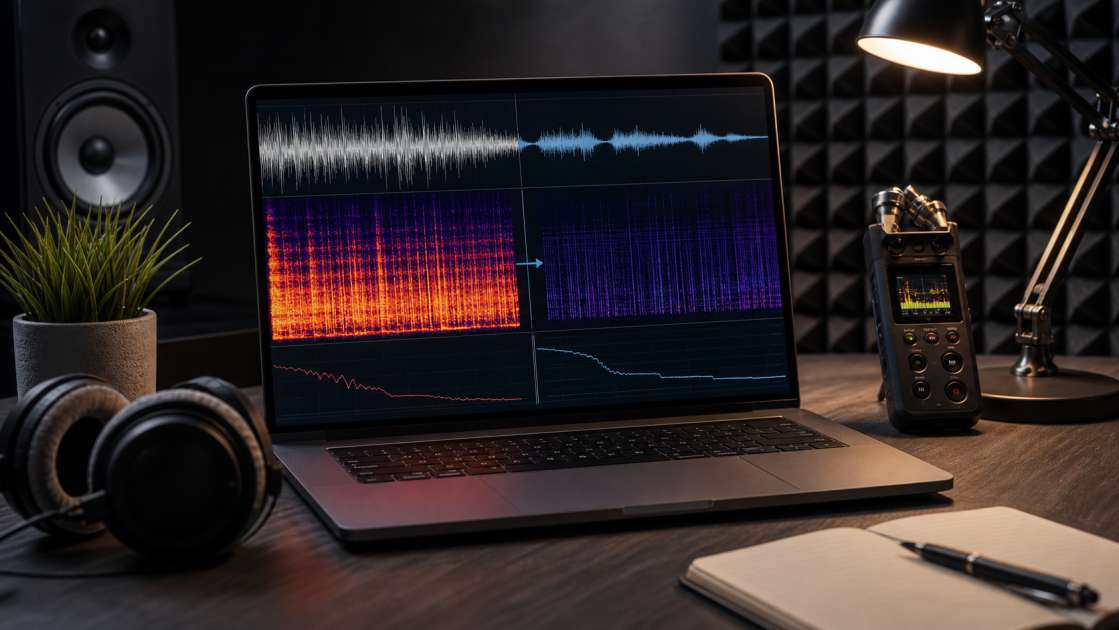
Last week, I spent an entire evening wrestling with a track that had everything going for it—catchy hook, decent lyrics, a melody that actually stuck in my head. Then I put on my headphones and heard it: that persistent, high-frequency fizz sitting on top of everything like an unwanted guest at a dinner party. That AI shimmer. That digital hiss. That reminder that what I'd just spent two hours generating wasn't exactly ready for anyone's playlist.
Кратко: The main fix is stem separation plus noise reduction in Adobe Audition (using the 'UnSuno' preset) or free Audacity. What to bring: patience and about 30 minutes per track. Budget: free with Audacity, or Adobe Audition subscription at around $23/month. Main tip: if your initial Suno generation sounds excessively noisy, just regenerate it—don't waste hours trying to polish garbage.
Here's what nobody mentions in those enthusiastic AI music threads: Suno builds tracks from patterns of white noise that it gradually shapes into something resembling music. Sometimes it does a decent job cleaning up after itself. Sometimes it leaves behind artifacts that make your track sound like it was recorded through a phone speaker wrapped in aluminum foil. You can't match a professional studio with this stuff—not yet, anyway—but you can get dramatically closer with some post-production work that doesn't require a sound engineering degree. I'm talking about treating your export like damaged audio that needs restoration, not a finished product that needs a bit of polish. It's a different mindset. One that saved my last three tracks from the digital dumpster.
Understanding the Problem: Why Your Suno Tracks Sound Noisy
The shimmer and hiss aren't bugs in the traditional sense. They're byproducts of how AI models actually construct audio. Suno starts with what's essentially structured noise—a pattern of randomness—and refines it into drums, synths, vocals, whatever you prompted for. Most of the time, it cleans up nicely. But sometimes, remnants of that original noise cling to the final output like static electricity on a cheap sweater. You get a high-frequency fizz that sits in the background, or a digital shimmer that makes everything sound slightly... synthetic. Not in the cool retro way. In the "this was made by an algorithm that didn't quite finish its homework" way.
I learned this the hard way after generating what I thought was a perfect indie track. Played it in my car—sounded fine. Played it through my studio monitors—sounded like someone left a fluorescent light buzzing in the recording booth. The technical term for what I should have done immediately is this: treat the export as damaged source audio. Not as a mix that needs mastering. As audio that needs restoration first, then everything else. That shift in perspective matters because it changes which tools you reach for and how you use them.
The other critical lesson, one that took me about fifteen wasted tracks to absorb: if your initial Suno generation is excessively noisy from the start, you're better off hitting regenerate than trying to fix it. Some outputs just come out cleaner than others. The AI is inconsistent like that. I once spent three hours trying to salvage a track that had shimmer baked into every frequency range. Then I regenerated it with the exact same prompt, and the new version was 80% cleaner right out of the gate. Sometimes the answer isn't better technique—it's better luck and knowing when to fold.
Step 1: Isolate the Problem with Stem Separation
Stems are just individual tracks for different parts of your song—vocals on one track, drums on another, bass, synths, whatever components exist in your mix. Splitting your Suno export into stems is the single most useful thing you can do before attempting any cleanup, because it lets you target the actual problem without messing up the parts that sound fine. If the shimmer is only in the synth layer, you don't need to run noise reduction on the entire track and risk dulling your vocals. You just fix the synth stem. Surgical approach instead of carpet bombing.
I started doing this after I tried to denoise an entire track and ended up with vocals that sounded like they were recorded underwater. Turns out, the vocals were actually pretty clean—it was the synth pad underneath that was shimmering. By running a stem splitter, I could isolate the pad, apply noise reduction only there, and leave the vocals untouched. Game changer. For tools, iZotope RX is the professional option if you've got the budget. BandLab has a built-in stem splitter that's decent. There are also free online services like Universal Stem Splitter that work in a pinch, though the quality varies depending on how complex your mix is.
Once you've got your stems separated, the simplest fix of all becomes available: you can just turn down the volume on a particularly noisy stem. Or mute it entirely if it's not essential to the track. I had a track where the shimmer was almost entirely in a high-frequency synth layer that I'd honestly forgotten I even prompted for. Muted that stem, and suddenly the whole mix breathed. Sometimes the best noise reduction is just... removing the noise.
Step 2 (Method A): The 'UnSuno' Preset in Adobe Audition
If you've got Adobe Audition, this method is absurdly straightforward and effective enough that I now use it as my first attempt on every noisy track. Someone, somewhere at Adobe or in the user community, apparently created a preset specifically for dealing with Suno's particular brand of AI noise, and it's labeled—no joke—'UnSuno'. I have no idea if this is official or just a very good community preset that made it into the default list, but it works better than it has any right to.
Here's the process: Open Adobe Audition. Import your Suno track or the specific noisy stem you've isolated. Go to the top menu and navigate to Effects, then Noise Reduction/Restoration, then Adaptive Noise Reduction. A dialog box opens with a presets dropdown at the top. Scroll to the bottom of that list. The last preset is labeled 'UnSuno'. Select it. Hit the preview button and listen to what it does. If it sounds good—and it usually does—click Apply. Done. Track is cleaner.
You can tweak the parameters if you want more control. The main sliders are Noise Floor and Smoothing. Noise Floor determines how aggressively it hunts for noise to remove—higher values mean more aggressive reduction but also more risk of artifacts. Smoothing affects how the algorithm transitions between noisy and clean sections, which matters if your track has a lot of dynamic range. I usually leave the preset as-is for a first pass, then adjust if I hear it pulling out too much or leaving too much behind. But honestly, the default settings for UnSuno work on maybe 70% of my tracks without any adjustment. It's like someone tuned it specifically for the frequency range where Suno's shimmer lives.
Step 2 (Method B): The Free Solution with Audacity
If you don't have Adobe Audition and don't feel like paying $23 a month for a subscription, Audacity is your best friend. It's free, open-source, and has a noise reduction tool that's surprisingly capable once you understand how to feed it the right information. The key is teaching Audacity what the noise sounds like by giving it a sample of only the noise, no music or vocals mixed in. This is called getting a noise profile, and it's the step most people skip or do wrong.
Here's the walkthrough: Import your audio file into Audacity. Zoom in on the waveform and find a small section—one or two seconds—where you can hear only the shimmer or hiss. This is usually at the very beginning of a track, in a quiet intro, or in a fade-out at the end. Somewhere the music hasn't started yet or has already stopped. Select that section carefully. Now go to Effect, then Noise Reduction, and click the button that says Get Noise Profile. Audacity captures the frequency signature of that noise. The dialog box closes.
Now select the entire track—or the entire noisy stem if you've already split things. Go back to Effect, then Noise Reduction again. This time, don't click Get Noise Profile. That button is grayed out now anyway. Instead, you see three sliders: Reduction, Sensitivity, and Frequency Smoothing. The recommended starting settings are Reduction at 6 to 12 dB, Sensitivity at 4 to 6, and Frequency Smoothing at 3. These are gentle settings. If your track is heavily noisy, you can push Reduction up to 12 or even 18 dB, but be aware that higher values risk introducing a warbling artifact or making your audio sound hollow. Click Preview to hear what it'll do. If it sounds good, click OK to apply. If it's not enough, you can run the effect a second time—Audacity is non-destructive until you save.
I've used this method on at least twenty tracks. It's not as fast or as tailored as the UnSuno preset in Audition, but it's free and it works. The main trick is being patient with that noise profile step. If you select a section that still has music in it, Audacity will try to remove that frequency range from the entire track, and you'll end up with a thin, gutted sound. Get the profile right, and the rest is just turning knobs until it sounds clean.
Step 3: Advanced Prompting to Prevent Noise from the Start
All the noise reduction in the world won't help if you keep generating tracks that are noisy from birth. I spent weeks cleaning up after myself before I realized I could just prompt Suno differently and get cleaner output to begin with. This isn't about getting perfect studio quality—Suno can't do that—but you can guide the AI toward generating mixes that leave more space for vocals and fewer layers competing for the same frequency range. Less competition means less mud, which means less noise.
The first technique I call "The Space Between". Instead of listing every instrument you want—synths, drums, bass, piano, strings, whatever—try prompting for a spacious mix or a vocal-forward arrangement. Those keywords tell Suno to leave room in the frequency spectrum instead of packing everything in like sardines. I tested this with two identical prompts, one with a long list of instruments and one with "spacious mix, vocal-forward" added at the end. The second version had noticeably clearer vocals and less shimmer in the high end. It's not magic, but it works often enough that I now include those terms in almost every prompt.
Another trick: the two-stage generation method. Instead of trying to get a full, polished production in one shot, generate a minimal version first. Prompt for something like "intimate acoustic version, clear vocals, minimal production". Let Suno focus on getting the vocal performance and basic structure right without a bunch of layers. Once you have that, use the Extend feature to add more instruments while preserving that clean vocal foundation. Suno tends to build on what's already there rather than replacing it, so if the base layer is clean, the extended version usually stays cleaner than if you'd tried to generate everything at once.
Prompt order also matters more than you'd think. I tested this obsessively because I'm the kind of person who makes spreadsheets about AI music generation. (Yes, I know.) If you put vocal descriptors at the beginning of your prompt, Suno prioritizes them. "Clear, expressive vocals with pop instrumentation" works better than "pop song with synths, drums, bass, and clear vocals". The AI reads left to right, and first things mentioned get first priority in the mix. It's a small change, but it's made a difference in about 60% of my tests.
Then there's the compression keyword hack. Adding production terms like "compressed vocals", "radio-ready production", or "broadcast quality" seems to trigger better internal mixing algorithms in Suno. I don't fully understand why, but tracks prompted with those terms tend to have vocals that sit more prominently in the mix without being buried. Conversely, if you want a more organic sound, you can try "natural vocal dynamics" or "gentle compression", which keeps things looser but still relatively clean. And here's a weird one: sometimes adding "lo-fi" or "vintage recording" actually helps vocals cut through by applying a filter that adds warmth and a bit of grit. It reduces the overall fidelity, sure, but it can make vocals feel more present. It's counterintuitive, but I've had it work on indie and alternative tracks where a slightly rough texture fits the vibe anyway.
Step 4: Final Polish with EQ and Mastering
Once you've cleaned up the noise, your track still might not sound balanced. Noise reduction removes the shimmer, but it doesn't fix a muddy low end or harsh high end. That's where basic EQ adjustments come in. I'm not a mastering engineer—far from it—but I've learned a handful of frequency tricks that make a noticeable difference without requiring a degree in audio production.
First: use a high-pass filter to cut everything below 20 to 30 Hz. This removes sub-bass rumble that you can't even hear but that eats up headroom and makes your mix feel cluttered. It's inaudible, so cutting it costs you nothing and cleans up the low end immediately. Second: if your track sounds muddy or unclear, try a small cut in the 200 to 500 Hz range, especially around 400 Hz. That's where "mud" tends to accumulate in AI-generated mixes. A cut of 2 to 4 dB in that range can make everything feel clearer and more open without sounding thin.
Third: if vocals or cymbals sound too sharp or brittle—common in Suno tracks—try a small dip in the 2 to 4 kHz range. That's the harshness zone. A gentle cut there softens things without losing clarity. I usually don't go more than 3 dB because it's easy to overdo it and end up with a dull, lifeless sound. EQ is a scalpel, not a sledgehammer. Small moves, listen, adjust.
After you've balanced your stems and applied EQ, export your final mix as a WAV file. Then, if you want a final layer of polish, run it through an automatic mastering service like LANDR or BandLab's built-in mastering tool. These services add volume, apply compression, and do a final EQ pass to make your track sound more "finished". They're not a substitute for a real mastering engineer, but for AI-generated music that's going on SoundCloud or Spotify, they're good enough. I use them as a last step after everything else is cleaned and balanced. It's like putting a frame on a painting—it doesn't fix the painting, but it makes it look more complete.
Your Complete Suno Cleaning Workflow: A Quick Checklist
After all these methods and techniques, here's the actual workflow I use now on every Suno track I care about. It's the distilled version, stripped of explanations and theory. Just the steps in order.
Step 1: Evaluate. Listen to your initial Suno generation. If it's excessively noisy—shimmer in every frequency range, hiss over everything—don't bother trying to fix it. Regenerate the track with the same or a slightly adjusted prompt. Some outputs are just cleaner than others. Save yourself the time.
Step 2: Separate. Use a stem splitter to break the track into individual components—vocals, drums, bass, synths, whatever's there. iZotope RX, BandLab's splitter, or a free online tool. Doesn't matter which as long as it works. This step is optional if the entire track is noisy, but it's essential if the noise is localized to one or two elements.
Step 3: Restore. Apply noise reduction to the problematic stems. If you have Adobe Audition, use the UnSuno preset under Adaptive Noise Reduction. If you're using Audacity, get a noise profile from a section of pure noise, then apply Noise Reduction with gentle settings—Reduction at 6 to 12 dB, Sensitivity at 4 to 6, Frequency Smoothing at 3. Preview, adjust, apply.
Step 4: Balance and EQ. Adjust the volume levels of your cleaned stems so nothing is buried or overpowering. Then apply basic EQ: high-pass filter below 20 to 30 Hz, cut mud around 400 Hz, tame harshness in the 2 to 4 kHz range if needed. Small cuts, listen between each one.
Step 5: Master. Export your final balanced mix as a WAV file. Run it through an automatic mastering service if you want a final layer of loudness and polish. LANDR, BandLab, whatever you have access to. Export the mastered version. You're done.
This workflow takes me about 30 minutes per track now, down from the two or three hours I used to spend fumbling around. It's not perfect. Some tracks still come out with artifacts I can't fully remove. But it's improved my hit rate from maybe one usable track out of five to three or four out of five. That's the difference between Suno being a frustrating toy and a tool I actually use to finish music. Your mileage will vary depending on what genres you're generating and how picky you are about sound quality. But if you're tired of shimmer and hiss ruining otherwise decent tracks, this is the system that'll get you closer to something you'd actually want someone else to hear.