I've spent three hours on a track. The drums hit perfectly, the bass is a warm, rolling wave, the vocals sound—dare I say it—almost human. Then, at exactly 2:14, right as the chorus drops, there's this metallic screech that sounds like a dying modem having an existential crisis. I hit replay. It's still there. I turn up the volume. Worse. It's not a feature; it's a glitch, a digital smudge on what could have been my masterpiece. This is what everyone politely calls an 'artifact,' though I prefer 'the thing that makes me want to throw my laptop out the window.' If you've used Suno for more than ten minutes, you know exactly what I'm talking about. The good news is that these digital gremlins aren't random acts of God. They have causes, and more importantly, they have solutions. I'm not here to write a manual or hold your hand through some inspirational journey. I'm here because I've wasted enough time on this problem to figure out what actually works, and I'm going to lay it out: why the AI screws up, how to stop it from screwing up in the first place, and when it inevitably does anyway, how to surgically remove the mess without destroying the rest of the track.
Вкратце: artifacts are AI hiccups—glitches, hisses, metallic screeches. They happen mostly because of overly complex prompts, wrong BPM settings (stay between 60-175), or the AI just choking during transitions. Best tool to bring: iZotope RX software if you're serious about spectral editing, or at least a basic DAW with a denoise plugin. Budget: RX costs around $400, but free DAW plugins can handle 70% of issues. Top advice: regenerate your track 2-3 times and pick the cleanest version before you even think about post-production.
Understanding the 'Why': The Main Causes of Suno Artifacts
The AI isn't stupid, but it's not a genius either. It's a trained parrot that sometimes forgets the words mid-song. This section is about understanding when and why it stumbles, so you can stop treating every artifact like a mystery and start seeing the patterns. There are five main ways Suno trips over its own digital feet, and once you recognize them, half the battle is won.
First, overly complex prompts. I once fed it a prompt that read something like "calm epic orchestral techno with jazzy undertones and acoustic warmth." I might as well have asked it to paint the Mona Lisa while riding a unicycle. The AI doesn't have taste; it has training data. When you give it conflicting instructions—calm but epic, orchestral but techno—it hesitates. That hesitation manifests as noise, as a weird shimmer in the background, as a sound that doesn't belong anywhere. The model is trying to serve two masters at once, and the result is a sonic compromise that satisfies no one.
Second, wrong speed settings. Suno has a comfort zone, and it's between 60 and 175 BPM. Go slower than 55 or faster than 180, and you're pushing it into territory where it starts to sweat. I tried making a doom metal track at 45 BPM once. The result sounded like the instruments were drowning in molasses, and every sustained note had this weird digital vibrato that didn't exist in my prompt. The AI can't handle extremes gracefully. It's like asking someone who's only ever jogged to suddenly sprint or crawl—they'll do it, but it won't look natural.
Third, technical limitations. Sometimes, the drums bleed into the vocal track. Sometimes, there's a faint shimmering buzz that sits underneath everything, like the AI's version of tinnitus. This isn't your fault or even the prompt's fault. It's just the model doing its best impression of a mixing engineer and failing. Sounds overlap because the AI doesn't perfectly isolate each element. It's generating everything in one pass, and occasionally, the reverb from one instrument leaks into another's space. It's the digital equivalent of recording in a room with bad acoustics.
Fourth, loudness and compression. I didn't realize this until I uploaded a track to YouTube and it came back sounding like it had been run through a tin can. Turns out, when you make a track very loud and then YouTube's algorithm compresses it further, any faint metallic hiss the AI generated gets amplified. It's like turning up a cheap microphone and suddenly hearing all the background static you didn't know was there. The artifact was always there, hiding in the quiet parts, but compression drags it into the spotlight.
Fifth, transitions. The AI hates transitions. Moving from verse to chorus, fading out at the end, any moment where the musical pattern shifts—these are danger zones. I've noticed that artifacts cluster at these points like flies on roadkill. The model is frantically trying to switch gears, and in that moment of recalibration, something breaks. A glitch, a pop, a weird digital stutter. It's clumsy, and it's predictable.
Prevention is Key: How to Create Cleaner Tracks from the Start
The absolute best way to deal with artifacts is to not have them in the first place. I know, revolutionary advice. But I'm serious. Spending five extra minutes refining your prompt will save you an hour of trying to surgically remove a glitch from a finished track. Prevention isn't glamorous, but it's the difference between a clean generation and a cleanup operation.
Simplify your prompts. I mean it. One genre, maybe two if they're naturally compatible. "80s synthwave pop" is fine. "80s synthwave retro pop electronic with orchestral undertones and a hint of jazz" is a recipe for disaster. The AI doesn't get more creative with more words; it gets confused. Every extra descriptor is another variable it has to juggle, and eventually, it drops one. That dropped ball becomes your artifact. I started cutting my prompts down to the bare essentials, and the number of glitches I had to fix dropped by at least half.
Control your BPM. I can't stress this enough. If you're setting up a song, make sure the tempo is between 60 and 175 BPM. This is the range where Suno is comfortable. Go outside it, and you're gambling. I've tested this repeatedly. A track at 150 BPM with the same prompt as a track at 190 BPM will have noticeably fewer artifacts. It's not magic; it's just the model working within its strengths.
Don't mix clashing styles. I tried combining free jazz and hardstyle techno once because I thought it would sound interesting. It didn't. It sounded like a car accident. The AI couldn't reconcile the chaotic, loose rhythm of jazz with the rigid, pounding structure of techno. The result was a mess of digital noise and instruments that sounded like they were fighting each other. If two genres have fundamentally different instruments or rhythms, keep them separate.
Regenerate and choose the best. This is the laziest fix, and also the most effective. If you generate a track and it has artifacts, don't immediately start reaching for editing software. Just hit generate again. Suno's output is slightly random each time. I usually make three versions of the same prompt and pick the cleanest one. It takes two minutes and saves me an hour of post-production. Sometimes the simplest solution is the right one.
Use formatting tricks. I've had luck with adding extra space between verses in the lyrics box. An empty line seems to give the AI a moment to reset, and I've noticed fewer glitches at those points. I've also dropped in a meta-tag like [instrumental] in a spot where I kept getting a weird shimmer, and the next generation was cleaner. I don't know if this is placebo or if the AI actually responds to these cues, but I've done it enough times that I keep doing it.
The Clean-Up Crew: Fixing Artifacts with Post-Production Tools
You did everything right. You simplified the prompt, kept the BPM in the safe zone, regenerated three times. And still, there's a glitch at 1:47 that sounds like a tiny robot hiccupping. Fine. Now we enter the realm of actual audio engineering, where you stop hoping the AI will behave and start manually fixing its mistakes. This is where the real work begins.
First step: get your stems. In Suno, there's an option to download stems, which are separate audio files for vocals, drums, bass, and other instruments. You need these. You can't fix an artifact if everything is baked into one file. With stems, you can isolate the problem. Maybe the glitch is only on the vocal track, or only on the drums. Once you know where it lives, you can kill it without damaging the rest of the song.
You'll need a DAW. That's a Digital Audio Workstation, which is just a fancy term for software that lets you edit audio. Think of it as Photoshop, but for sound. Popular ones are Ableton Live, Logic Pro X, FL Studio. I use Ableton because it's what I learned first, but they all do the same thing. You import your stems, and then you start hunting.
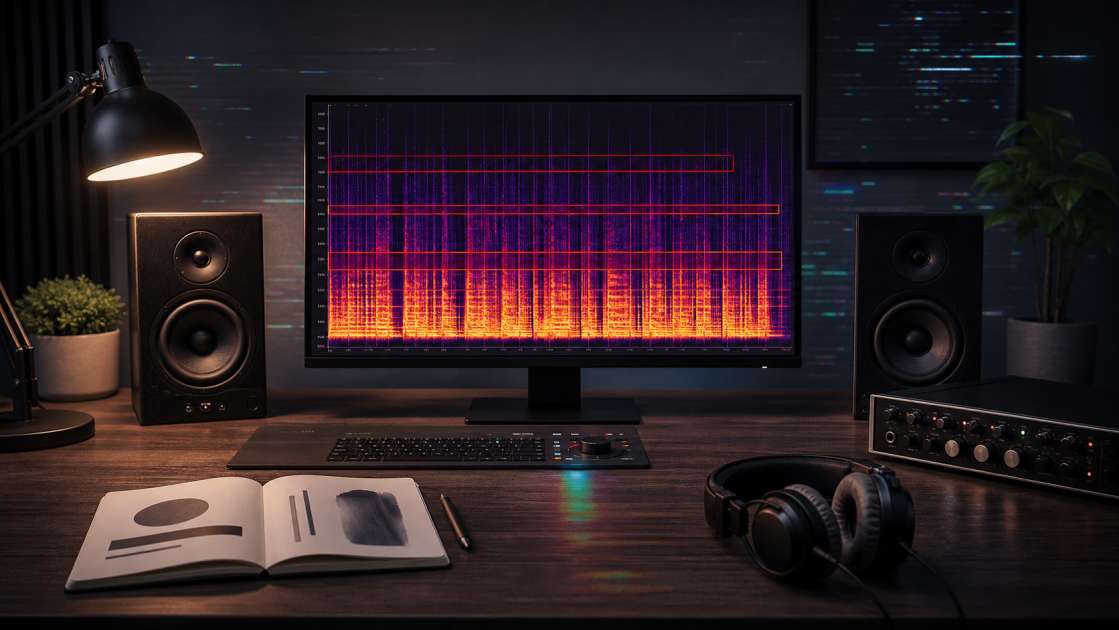
Spectral editing is the ultimate eraser. This is the most powerful technique, and it requires software like iZotope RX. It's not cheap—around $400—but if you're serious about this, it's worth every penny. Spectral editing shows you the audio as a picture, a spectrogram. Artifacts look like weird smudges, lines, or blobs that don't match the rest of the sound. You can literally see them. Then you use a tool called Spectral Repair, select the artifact, and the software intelligently fills in the gap with sound that matches the surrounding area. It's like Photoshop's healing brush, but for audio. I've removed glitches this way that would have been impossible to fix with any other method.
Denoise plugins are the quick fix. Almost every DAW has a built-in denoise plugin, or you can get a free one. You drop it onto the track with the artifact—let's say the vocal stem. Then you adjust the threshold setting, which tells the plugin how much noise to remove. Be careful here. If you set it too high, you'll remove the artifact but also muffle the vocals, making them sound like they're underwater. I usually start at a low threshold and gradually increase it until the artifact disappears but the original sound is still clear. It's a balancing act.
Surgical EQ is for when you know exactly where the problem is. You use a parametric EQ plugin and create a very narrow boost—like a thin spike. Then you sweep that spike across the frequency spectrum, from low to high, and listen. At some point, the artifact will suddenly get much louder. That's its home frequency. Once you've found it, switch the boost to a cut and lower that exact frequency. The artifact will often disappear completely, or at least become quiet enough that it's not noticeable. I've done this dozens of times. It's tedious, but it works.
Advanced Tricks and Quick Fixes for Common Issues
Some artifacts are so common that they deserve their own special solutions. These are the problems I've run into repeatedly, and these are the fixes that have saved me the most time. Consider this the cheat sheet for when you don't have the energy to do a full spectral analysis.
That metallic hiss. I hate this one. It's a faint, high-frequency shimmer that sits on top of everything, like someone left a tiny cymbal ringing in the corner of the room. It usually comes from compression, and it gets worse if your track is too loud. The fix is simple: use an EQ and gently cut everything above 16,000 Hz. Most people can't even hear frequencies that high, and that's where the hiss lives. Also, before you export your final track, make sure the master volume slider in your DAW is around 50-60%, not maxed out. If it's too loud, compression will amplify that hiss when you upload it anywhere.
A glitch in a silent spot. Sometimes an artifact happens right at the start of a section, or during a pause between verses. This is the easiest fix. Use volume automation in your DAW. Find the exact moment of the glitch, and draw a volume line that dips to zero right at that point, then comes back up immediately after. The glitch gets silenced, and because it's in a quiet spot, no one will notice the tiny dip in volume. I've done this in under a minute.
The track is too damaged. Occasionally, a stem is just ruined. Artifacts everywhere, like the AI had a seizure while generating it. If you can't fix it, mask it. Add a very quiet layer of vinyl crackle or white noise on top of the stem. Set its volume to around -12dB to -18dB—low enough that you barely hear it, but loud enough to hide the digital noise underneath. It won't fix the problem, but it'll make it sound intentional, like a lo-fi aesthetic choice. Sometimes you can't win, so you pivot.
Artifacts at the start or end. If the artifact is right at the very beginning of the track, or a weird tail at the end, just crop it. Find a clean starting point a fraction of a second later and trim off the bad part. Same with the end. If the last second has a glitch, cut it off. The song will still work. No one will notice that it's 0.3 seconds shorter than it could have been.
Your Checklist for a Flawless Suno Workflow
I'm going to distill everything into a checklist because I know you're not going to remember all of this. Print this out, bookmark it, tattoo it on your arm—whatever works. This is the process I follow every single time now, and my artifact rate has dropped to almost nothing.
Step 1: Prompt Smart. Start with a simple prompt. One or two genres maximum. Set the BPM between 60 and 175. Avoid conflicting styles. This is where most artifacts are born or prevented.
Step 2: Generate and Listen. Create 2-3 variations of your song. Listen to each one carefully with headphones. Pick the one with the fewest artifacts. Don't settle for the first generation just because it's there.
Step 3: Export Stems. If artifacts remain, download the stems. You need the vocals, drums, bass, and other instruments separated so you can target the problem without destroying the whole track.
Step 4: The DAW Cleanup. Import your stems into a DAW. Use spectral editing with iZotope RX for big, obvious problems. Use a denoise plugin or surgical EQ for smaller, subtler artifacts. This is where you spend the most time, but also where you have the most control.
Step 5: Final Polish. Use volume automation to silence glitches in quiet spots. Crop any artifacts at the very start or end of the track. Check your master volume levels—keep them around 50-60% before exporting. Add a subtle noise layer if a stem is too damaged to save. Export and listen to the final result on different devices to make sure nothing slipped through.
You're not at the mercy of the AI anymore. Artifacts are annoying, but they're not deal-breakers. You now have a process. You know what causes them, how to avoid them, and when they inevitably appear anyway, how to remove them. The more you do this, the faster it gets. Eventually, it becomes second nature. You'll hear an artifact, know exactly what tool to reach for, and have it fixed in two minutes. Keep experimenting, keep refining your process, and stop letting a stupid glitch ruin an otherwise perfect track.